

Documentation Index
Fetch the complete documentation index at: https://help.jetpack3pl.com/llms.txt
Use this file to discover all available pages before exploring further.
The IPP Settings page is where you can see exactly how MultiHub IQ is distributing your inventory across our US fulfillment network, review the AI-driven recommendations behind that placement, and request adjustments to the rebalance points that determine how stock is split between fulfillment centers.
IPP (Inventory Placement Platform) is the engine behind MultiHub IQ, calculating where each SKU should live across the network. This page is where you review those placement decisions and request adjustments.
IPP Settings Overview
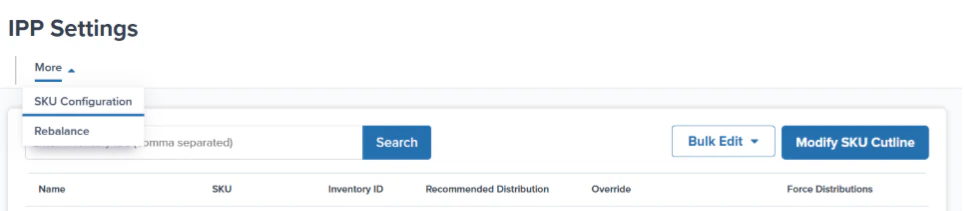
The IPP Settings page shows how your inventory is distributed across our US fulfillment network, so you can decide whether to request adjustments to the rebalance points that determine the inventory split between fulfillment centers. The page has two sections you can navigate between, SKU Configuration and Rebalance, which let you review:- MultiHub IQ’s AI-powered distribution recommendations
- Any overrides made to the distribution plan at the SKU level
You’ll only have access to the IPP Settings page if you’re currently distributing inventory through MultiHub IQ. New to MIQ? Learn how MultiHub IQ works.
Accessing the IPP Settings Page
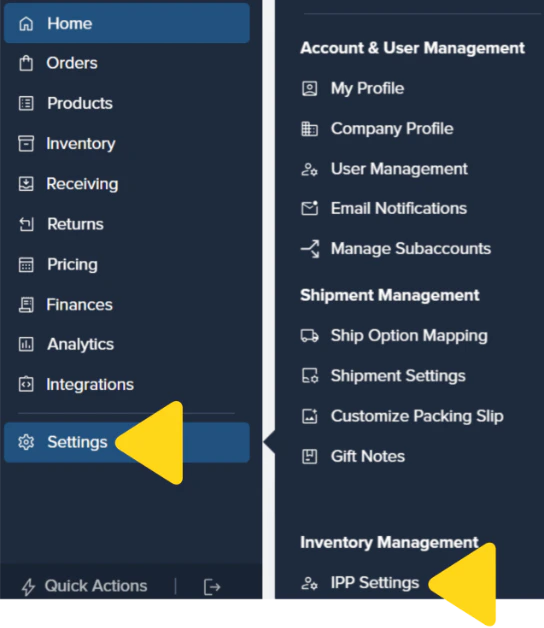
Open Settings
From the Jetpack dashboard, click Settings on the left-hand navigation bar. Additional menu options will appear.
Switching Between SKU Configuration and Rebalance
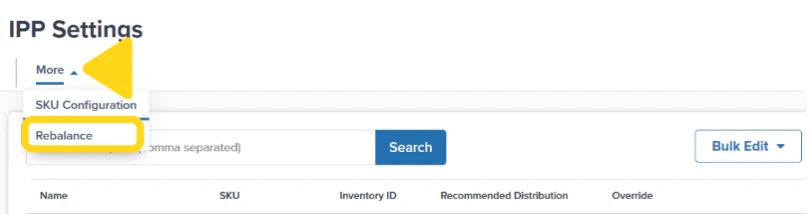
When you open the IPP Settings page, you’ll land on the SKU Configuration section by default. To switch to the Rebalance section:Open the More menu
Click the More drop-down menu (located at the top of the page). Additional options will appear.
SKU Configuration
The SKU Configuration tab displays all your SKUs actively distributed through MultiHub IQ. For each SKU, you’ll see MultiHub IQ’s recommended distribution strategy and any overrides to the plan that your company has requested.
Understanding the SKU Configuration Table
Each row represents a SKU enrolled in MultiHub IQ. The table includes the following columns:| Column | What it shows |
|---|---|
| Name | The product name as it appears in your Product Catalog |
| SKU | The product SKU as it appears in your Product Catalog |
| Inventory ID | Jetpack’s internal inventory ID for the SKU as it appears in your Product Catalog |
| Recommended Distribution | MultiHub IQ’s AI-recommended distribution strategy for the SKU, based on your historical order data, demand forecasting, and customer geography (see values below) |
| Override | Whether you’ve requested a manual override of the recommended distribution strategy for a specific SKU |
| Force Distributions | Whether you’ve requested to force a SKU to a specific fulfillment center, overriding the normal algorithm-driven placement |
| Value | Meaning |
|---|---|
| Head | A high-volume SKU, distributed across multiple fulfillment centers |
| No Volume (Head) | A SKU with no recent sales history (fewer than 50 orders), defaulting to a Head SKU |
| Tail | A low-volume SKU distributed only to the Hero fulfillment center |
Override is used when you want to customize placement for a particular product (for example, to ensure a slow-moving SKU is distributed when you expect its sales to pick up soon).Force Distributions should be used for SKUs with special storage, compliance, or regional requirements.
Rebalance
The Rebalance tab gives you visibility into MultiHub IQ’s calculated inventory rebalance points for each SKU across all enrolled fulfillment centers. It lets you review current versus ideal distributions and override the calculated rebalance points if needed.
Understanding the Rebalance Table
Each row corresponds to a specific SKU and its associated fulfillment center. If a SKU is stored at multiple fulfillment centers, you’ll see multiple rows for that SKU.| Column | What it shows |
|---|---|
| Inventory Item Name | The product name as it appears in your Product Catalog |
| SKU | The product SKU as it appears in your Product Catalog |
| Inventory ID | Jetpack’s internal inventory ID for the SKU as it appears in your Product Catalog |
| FC Rank | The priority ranking of the fulfillment center for the SKU. Rank 1 is the primary (Hero) location; higher numbers indicate secondary distribution nodes |
| FC Code | The airport code identifying the fulfillment center |
| FC Name | The city and state of the fulfillment center |
| Current Distribution | The current proportion of this SKU’s total inventory held at this fulfillment center, expressed as a decimal (e.g., 0.32581 × 100 = ~32.6% of total stock) |
| FC Ideal Distribution | The calculated ideal inventory proportion to hold at this fulfillment center, expressed as a decimal. Based on DTC demand patterns and customer geography |
| Calculated Rebalance Point | The quantity MultiHub IQ recommends as the inventory target for this fulfillment center. Derived from your SKU forecast, safety stock, and lead time assumptions, and recalculated automatically by the AI Decision Engine as your order history and demand patterns change |
| Override | Any manual override to the Calculated Rebalance Point (e.g., due to a planned promotional event in a specific region) |
Requesting Updates to IPP Settings
To request any of the following changes, contact your Jetpack Care team:- An Override for SKU Configuration settings (Head vs. Tail classification)
- A Force Distribution for SKU Configuration settings
- A modification to the SKU cutline percentage (the inventory threshold that separates your Head SKUs from your Tail SKUs)
- Overrides to the Calculated Rebalance Points for SKUs and their corresponding fulfillment center(s)
Best Practices
Keep these guidelines in mind when managing your IPP Settings:- Review Recommended Distribution values regularly, especially after a product launch or seasonal demand shift, so the AI has the most relevant data.
- Use Force Distributions sparingly. Forcing a SKU to a specific fulfillment center limits MultiHub IQ’s ability to optimize zone coverage and may increase average shipping costs.
- Compare Current Distribution vs. FC Ideal Distribution in the Rebalance tab to quickly spot SKUs that are over- or under-stocked at specific locations.
- Request a cutline modification if your product velocity mix changes significantly.
FAQs
What does No Volume (Head) mean in the Recommended Distribution column?
What does No Volume (Head) mean in the Recommended Distribution column?
A SKU classified as No Volume (Head) has been shipped in fewer than 50 orders within the last 90 days but is still designated as a Head SKU by default.This classification lets new SKUs be distributed according to the ideal network distribution, setting them up for success. Once the SKU begins generating order history, the AI engine updates its distribution recommendation accordingly.
Can I revert to the original recommendations after requesting changes?
Can I revert to the original recommendations after requesting changes?
Yes. To revert to the original MultiHub IQ-generated data, contact your Jetpack Care team via Slack, the chat feature in your dashboard, or by submitting a case.
How often are Calculated Rebalance Points updated?
How often are Calculated Rebalance Points updated?
The AI engine recalculates SKU categorization and rebalance points daily, in the mornings, based on historical sales data and demand forecasting.Note: Any manual overrides you set persist until you request to remove them.
What's the difference between Override and Force Distributions?
What's the difference between Override and Force Distributions?
- Override adjusts the distribution strategy for a SKU (e.g., changing how broadly it’s spread across the network).
- Force Distributions explicitly assigns the SKU to one specific fulfillment center (not necessarily the Hero fulfillment center), regardless of the algorithm’s recommendation.
Key IPP Terms
| Term | Definition |
|---|---|
| Hero Site | The fulfillment center that stocks all your SKUs (both Head and Tail). The algorithm prioritizes the Hero Site’s rebalance points when calculating WRO transfer plans. This site must remain stocked, otherwise imbalance, split shipments, and exception orders become a significant risk. |
| Rebalance Point | The minimum quantity per SKU that must be allocated to a fulfillment center when distributing inventory. Also commonly called a “stock floor.” |
| Head SKU | A SKU above the cutline (high velocity), distributed throughout all fulfillment centers the merchant uses. |
| Tail SKU | A SKU below the cutline (low velocity), stored only within the Hero Site, regardless of the hub of injection. |
| Cutline | The percentage of sales used to identify high- vs. low-velocity SKUs, which determines Head and Tail classification. Example: at a 90% cutline, the SKUs making up the top 90% of sales are Head SKUs, while the bottom 10% are Tail SKUs (stored only in the Hero Site). Cutlines are intelligent: SKUs can shift between Head and Tail over time unless overridden. |
| Force Distribute | Override Head and Tail logic to always send a SKU to one non-Hero site. |
| Rebalance Analysis | Analysis of current vs. ideal inventory levels and sales velocity that recommends internal transfers, helping you move closer to the ideal distribution using inventory already in our fulfillment centers. |
| Internal Transfer Order (ITO) | The work order for internal transfers that does not require a B2B order or manual WRO creation. |
| In Region Fulfillment (IRF) | The percentage of orders fulfilled from the same region in which they were ordered (based on all 5 regions, not just the regions you have access to). |
Let’s Dive Deeper
What is MultiHub IQ?
How MIQ distributes inventory across the network
Using MultiHub IQ
Create WROs, review transfer plans, and use ITOs for rebalancing
MIQ Transfer Plans
Edit transfer plans and add or remove fulfillment centers

Questions? Contact Jetpack Care.
Need to request an override, adjust your cutline, or revert to the original recommendations? Reach out to Jetpack Care anytime via Slack, phone, or email.